Step 2: Open Minute AI - Minute AI Walkthrough
Open the Minute AI interface using your login link
Great! You've deployed the demo
Now let's walk through what you just deployed and see it in action.
Start WalkthroughChoose your next step
Generate Evidence Pack
Create your business case documentation with what you've learned.
Generate Evidence PackWalkthrough progress
Step 2 of 6 • 1 minute
Open Minute AI
Paste your MinuteLoginUrl into a new browser tab. It starts a 7-day session automatically.
Expected outcome
- You have opened the MinuteLoginUrl in a new browser tab
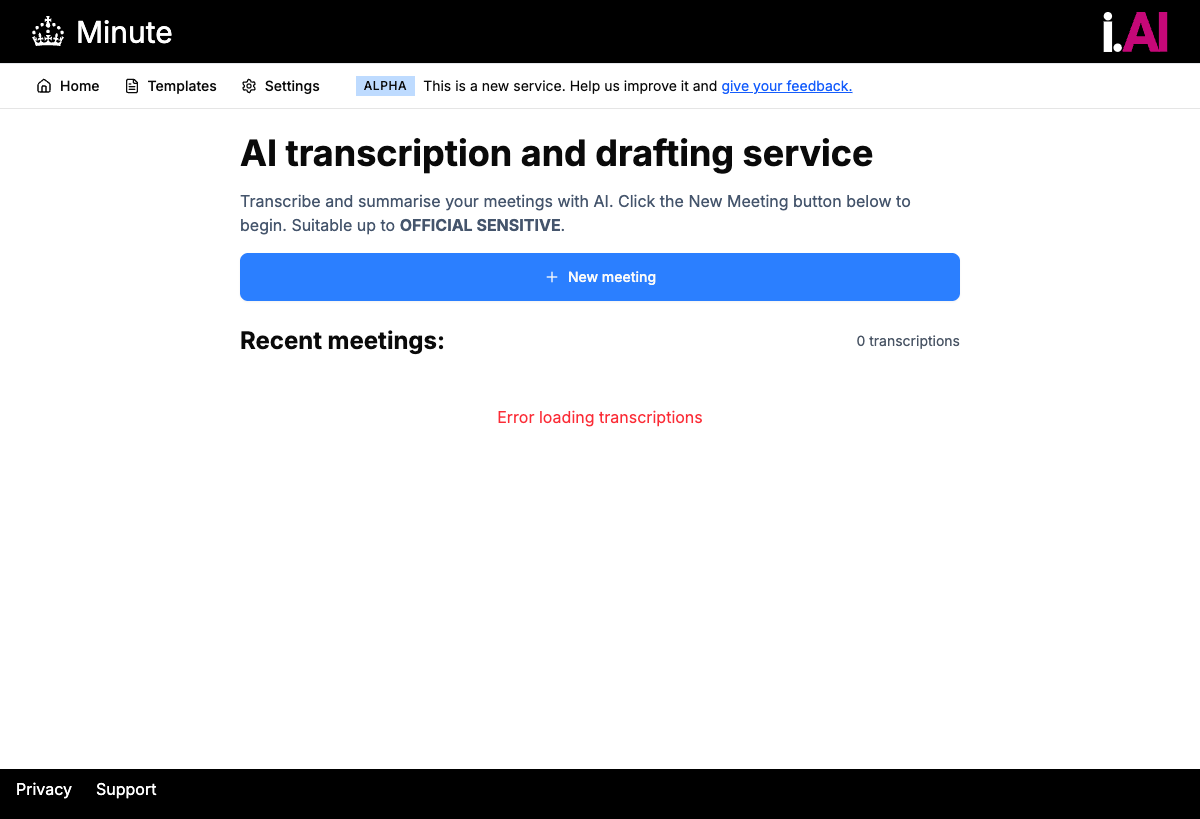
- The Minute AI homepage has loaded without a login prompt
- You can see the New meeting button
Opening Minute AI
-
Open the MinuteLoginUrl
Click the MinuteLoginUrl value from CloudFormation Outputs, or paste it into a new browser tab.
The URL ends in
?key=.... The first time you open it, CloudFront sets a session cookie and removes the?key=from the address bar. There is no username or password prompt. -
View the homepage
The Minute AI homepage should load immediately. Your session lasts seven days; after that, open the MinuteLoginUrl again to start a new session.
What you should see
After opening the link, you should see:
- The Minute AI homepage with a clean, modern interface
- A prominent "New meeting" button
- A list of any existing meetings (empty on first use)
- Navigation options including Templates
About Minute: Minute was built by i.AI (opens in new tab), the Incubator for AI within the UK Government. It is open source and designed for public sector use. The tool uses AWS Transcribe for speech-to-text and Amazon Nova Pro via Amazon Bedrock for minute generation.
Troubleshooting: Site not loading
If Minute AI does not load:
- Wait 2 to 3 minutes after stack completion – CloudFront may need time to propagate
- Check the CloudFormation "Events" tab for any errors
- Try refreshing the page
- Check you are using the correct URL from the Outputs tab
Troubleshooting: "Session link required" page
If you see a page saying "NDX:Try Minute – session link required":
- You opened the MinuteUrl instead of the MinuteLoginUrl. Go back to the Outputs tab and copy the URL that ends in
?key=. - Some chat clients and email clients strip
?key=from links. Copy the URL directly from the CloudFormation Outputs tab, not from a forwarded message. - If your session has expired (7 days), open the MinuteLoginUrl again to start a new session.
- The 401 page includes a direct link back to the CloudFormation Outputs tab for your stack.