Step 2: Multichannel - fly-tip on the phone, photo via the simulator - AI Contact Centre Walkthrough
Report a fly-tip on the phone. The bot asks for a photo. The line stays open while you upload one through the in-browser simulator. The bot reads back a single sentence linking call and photo to one case.
Great! You've deployed the demo
Now let's walk through what you just deployed and see it in action.
Start WalkthroughChoose your next step
Generate Evidence Pack
Create your business case documentation with what you've learned.
Generate Evidence PackWalkthrough progress
Step 2 of 8 • 6 minutes
Multichannel: fly-tip on the phone, photo via the simulator
Report a fly-tip on the phone. The bot asks for a photo and waits. Open the WhatsApp/iMessage/RCS simulator on the right of the companion app, attach a photo of rubbish, hit Send. The bot describes what it sees, links it to your open case, and reads a single sentence back down the phone.
Screenshot updating - please check back soon
Screenshot updating - please check back soon
Screenshot updating - please check back soon
Screenshot updating - please check back soon
Screenshot updating - please check back soon
Screenshot updating - please check back soon
Expected outcome
- The bot recognises a fly-tip intent and asks for a photo
- The line stays open in a holding pattern while you upload
- The right pane (the WhatsApp/iMessage/RCS simulator) accepts your photo upload
- Bedrock Nova Pro returns a structured description in about ten seconds
- Connect Cases shows one ticket with both the call transcript and the photo attachment
- The bot reads back a single sentence linking the photo to your call
The fly-tip script
Dial the number again. When the bot greets you, say:
"There's a load of rubbish been dumped in the alley behind my house. It's been there since the weekend. Mattresses, bin bags, the lot."
The bot says something like:
"Thanks for reporting that. Could you send a photo? You can upload one right now through the WhatsApp, iMessage or RCS simulator on the right of the companion app. I'll wait."
The line holds. The contact flow has dropped you into a long-poll branch that waits for the photo. You don't hang up; you upload.
Download a photo to use
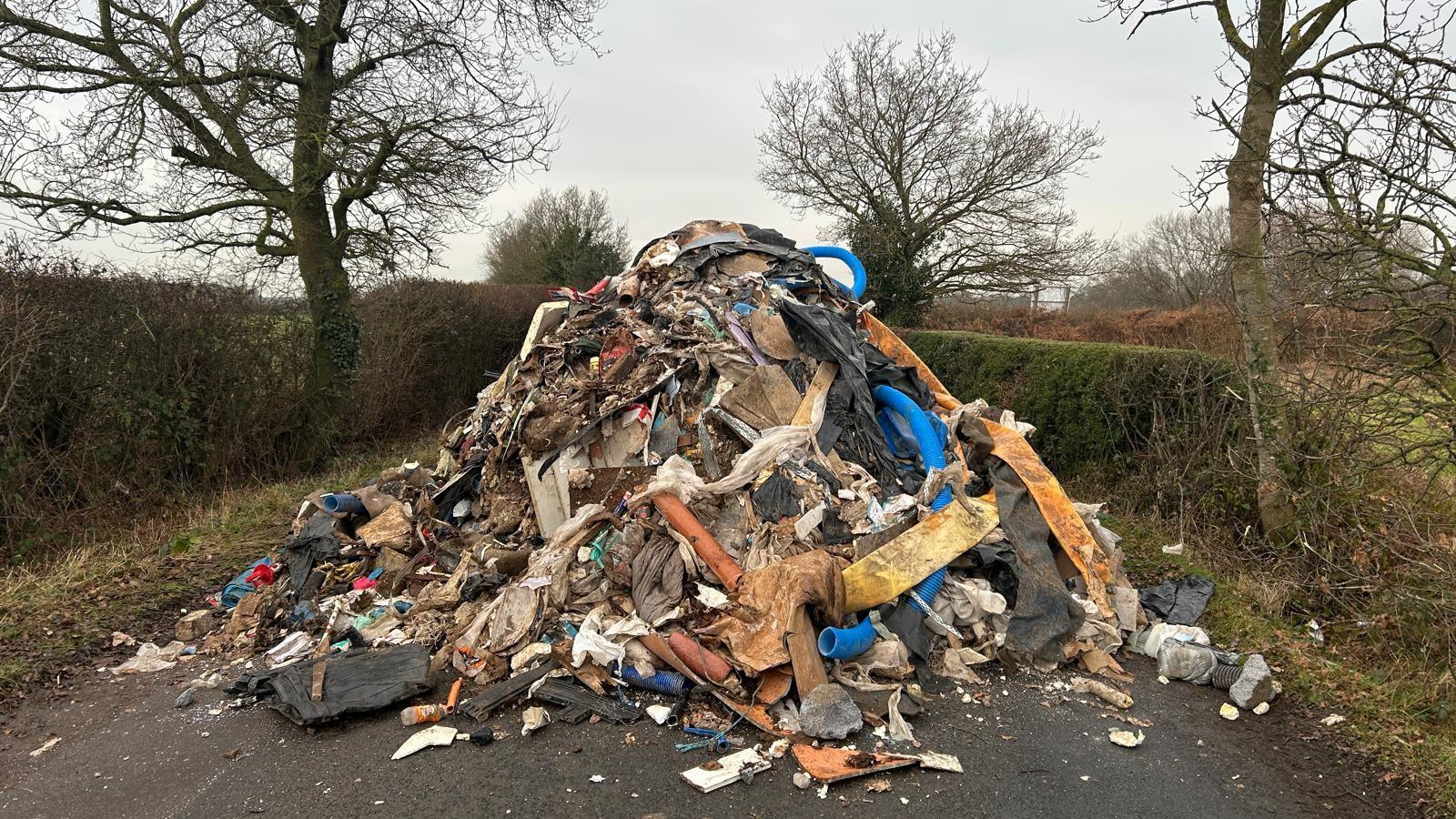
A real-world picture of dumped rubbish. Save it to your machine, then upload it through the simulator pane in the next step. Or use any photo on your device — the bot will describe whatever it sees.
Download photo (JPEG, 440 KB)Open the simulator and send the photo
- In the companion app, look at the right-hand pane. That's the WhatsApp/iMessage/RCS simulator, standing in for whichever messaging channel the resident would actually use.
- In the sender-phone field, type the same number you called from in step 1. The case is looked up by your phone number, so it has to match.
- Click Choose photo and pick the photo you just downloaded (or any photo on your device).
- Click Send.
What you'll see
A sequence of chat bubbles appears in the simulator pane:
- ~1 second: "Photo received. Sender ID: {your phone}"
- ~3 seconds: "Analysing image with Amazon Bedrock…" with a loading animation
- ~6 seconds: "Looking up your case in Connect Cases…"
- ~10 seconds: the bot's structured read of the photo, with fields like:
- What is it? e.g. fly-tip, pothole, broken streetlight
- What state is it in? e.g. "large pile of mixed waste"
- How urgent? low, medium, or high
- Suggested council response, e.g. "arrange for removal by contractor"
- How confident is the bot? a 0 to 1 score
A few seconds later, on the still-open phone call, the bot reads back a single sentence:
"I've reviewed your photo; environmental health will visit Wednesday, ref ABC123."
One resident, one case, two channels, one answer. That's the moment this scenario exists to demonstrate.