Step 8: PDF to Web Converter - LocalGov Drupal Walkthrough
Convert legacy PDF documents to accessible web content using AI
Great! You've deployed the demo
Now let's walk through what you just deployed and see it in action.
Start WalkthroughChoose your next step
Generate Evidence Pack
Create your business case documentation with what you've learned.
Generate Evidence PackWalkthrough progress
Step 8 of 11 • 4 minutes
PDF to Web Converter
Convert legacy PDF documents into accessible web pages using AI-powered document analysis.
Expected outcome
- You understand what PDF to Web Converter does
- You know how to access it from the admin menu
- You've seen how PDFs become accessible web content
What is PDF to Web Converter?
LocalGov Drupal includes a PDF to Web conversion tool that transforms legacy PDF documents into accessible, standards-compliant web pages. This feature uses AI to extract text, tables, and structure from PDFs and convert them to semantic HTML.
Why convert PDFs? Many councils have important information locked in PDF documents that aren't accessible to screen readers, don't work well on mobile, and can't be found by search engines. Converting to web content solves all these problems.
Where to find it
The PDF to Web Converter is available in the Drupal admin menu:
- Click Content in the admin toolbar
- Select PDF to Web from the dropdown
Or navigate directly to: /admin/content/pdf-to-web
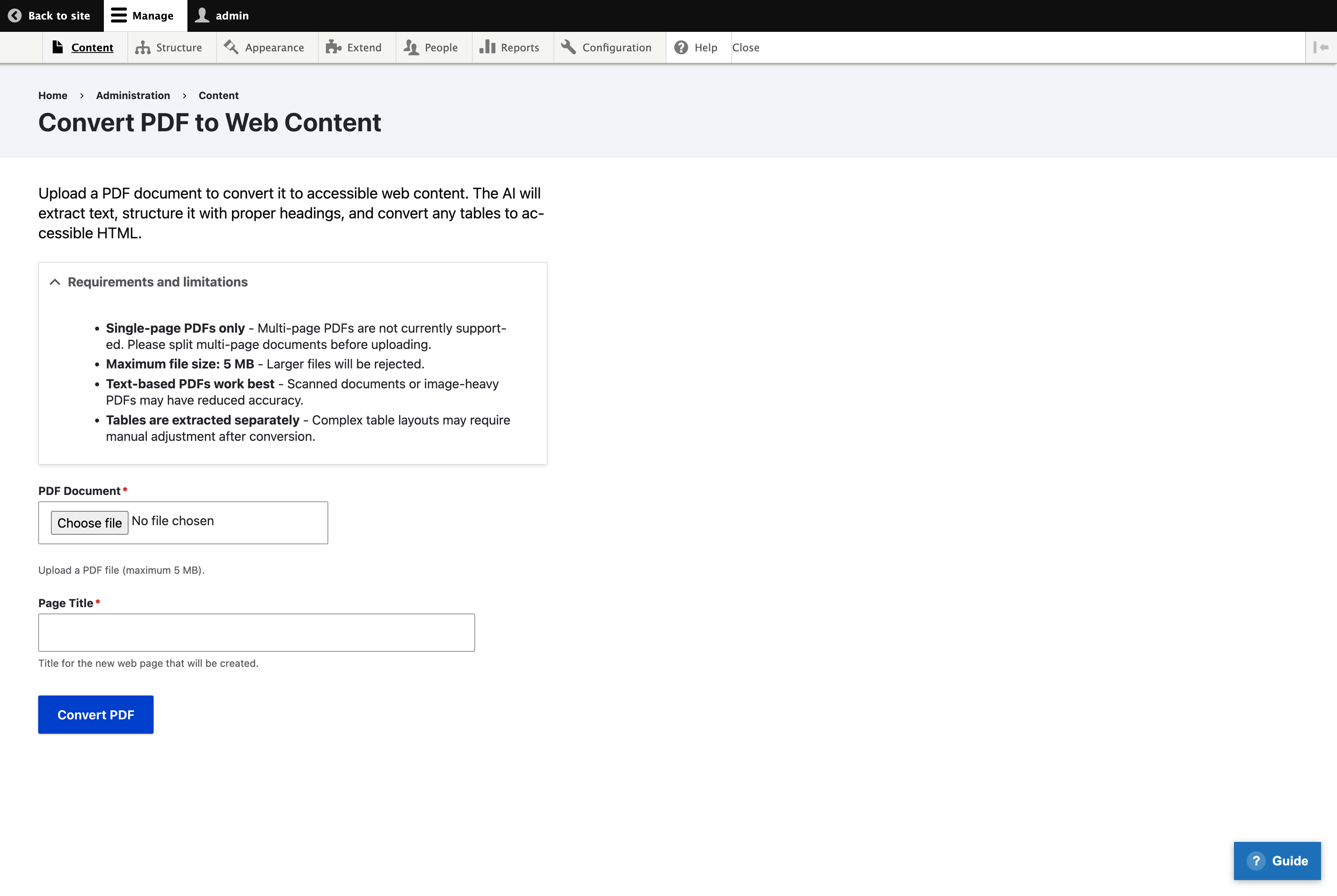
How to convert a PDF
-
Upload your PDF
Drag and drop a PDF file onto the upload area, or click to browse and select a file. The converter works best with text-based PDFs (not scanned images).
-
Enter a page title
Give your new web page a descriptive title. This will become the page heading and appear in search results.
-
Click Convert PDF
The conversion process begins. You'll see real-time progress as the AI analyses your document.
-
Review the preview
Once complete, you'll see a preview of the converted HTML along with statistics about what was extracted.
-
Create a draft page
Click "Create Draft Page" to save the content as an unpublished Drupal page. You can then edit and publish it when ready.
What happens during conversion
The conversion process has four stages:
Extracting text
AWS Textract reads all text and tables from your PDF
Analysing structure
AI identifies headings, paragraphs, lists, and tables
Structuring content
Amazon Bedrock organises content into semantic HTML
Complete
Preview ready with conversion statistics

Conversion statistics
After conversion, you'll see helpful statistics:
| Statistic | What it means |
|---|---|
| Pages extracted | Number of PDF pages processed |
| Tables found | Tables detected and converted to HTML |
| Word count | Total words in the extracted content |
| Confidence score | AI's confidence in extraction accuracy (higher is better) |
| Processing time | How long the conversion took |
AWS Services Used
Extracts text, tables, and layout information from documents using machine learning. Learn more about Amazon Textract (opens in new tab)
Uses foundation models to structure content into semantic HTML with proper headings. Learn more about Amazon Bedrock (opens in new tab)
Common use cases
| Document type | Why convert |
|---|---|
| Council reports | Make committee reports searchable and accessible |
| Policy documents | Improve discoverability of policies and procedures |
| Guidance leaflets | Replace outdated PDFs with modern web content |
| Forms information | Convert form instructions to accessible pages |
| Historical archives | Digitise legacy documents for preservation |
Tip: Always review converted content before publishing. The AI does excellent work but may need minor adjustments, especially for complex tables or unusual formatting.