Step 2: Explore the Homepage - LocalGov Drupal Walkthrough
Understand LocalGov Drupal’s structure and navigation
Great! You've deployed the demo
Now let's walk through what you just deployed and see it in action.
Start WalkthroughChoose your next step
Generate Evidence Pack
Create your business case documentation with what you've learned.
Generate Evidence PackWalkthrough progress
Step 2 of 11 • 3 minutes
Explore the Homepage
Take a tour of LocalGov Drupal's homepage and understand how council content is organised.
Expected outcome
- You can identify the main navigation areas
- You understand how services are organised
- You've seen the pre-populated sample content
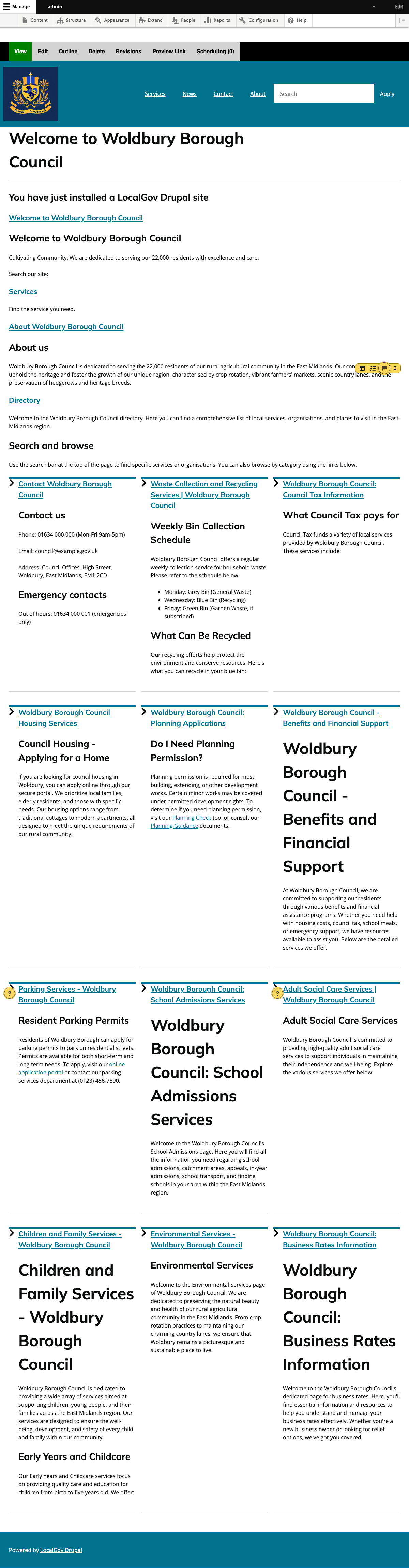
The LocalGov Drupal homepage
LocalGov Drupal is designed specifically for UK councils. The homepage follows GOV.UK design patterns that residents expect from government services.
To view the homepage: Click on your site name in the admin toolbar, or visit the DrupalUrl without any path.
Key areas to explore
1 Main navigation
The top menu provides access to key service areas: Waste & Recycling, Planning, Council Tax, Housing, and more. This matches how residents typically look for council services.
2 Service cards
The homepage displays prominent service cards for frequently accessed services. Each card links to a service landing page with detailed information.
3 News section
Recent news articles appear on the homepage. These are sample articles showing council announcements and updates.
4 Footer links
The footer contains links to Contact, Accessibility, Privacy, and other statutory pages that councils are required to provide.
Pre-populated sample content
Your deployed site includes realistic UK council content so you can see how LocalGov Drupal works in practice:
| Content type | Examples | Quantity |
|---|---|---|
| Service pages | Waste & Recycling, Planning, Council Tax | 15-20 |
| Guide pages | How to apply for planning permission | 5-8 |
| Directory entries | Council offices, recycling centres | 10-15 |
| News articles | Council announcements | 5 |
Try this
Navigate to a service page:
- Click on "Waste & Recycling" in the main navigation
- Notice the service landing page layout
- Click on a sub-page like "Bin collection days"
- See how the content is structured with headings, lists, and call-to-actions
Tip: All this content is editable. In the next step, you'll learn how to edit existing pages.