Step 10: Listen to Page - LocalGov Drupal Walkthrough
Discover the text-to-speech accessibility feature powered by AWS Polly
Great! You've deployed the demo
Now let's walk through what you just deployed and see it in action.
Start WalkthroughChoose your next step
Generate Evidence Pack
Create your business case documentation with what you've learned.
Generate Evidence PackWalkthrough progress
Step 10 of 11 • 3 minutes
Listen to Page
Explore the text-to-speech feature that makes content accessible to all visitors.
Expected outcome
- You understand what Listen to Page does
- You know which pages have this feature
- You've seen the playback controls
What is Listen to Page?
LocalGov Drupal includes a text-to-speech feature that reads page content aloud to visitors. This accessibility feature is powered by AWS Polly, Amazon's neural text-to-speech service.
Accessibility matters: Text-to-speech helps users with visual impairments, reading difficulties, or those who prefer audio content. It's part of making council services accessible to everyone.
Where to find it
The "Listen to this page" player appears at the top of content pages, including:
- Service pages - waste collection, planning, council tax, etc.
- Guide pages - step-by-step instructions and how-to content
- News articles - council announcements and updates
Navigate to any service or guide page to see the TTS player in action.
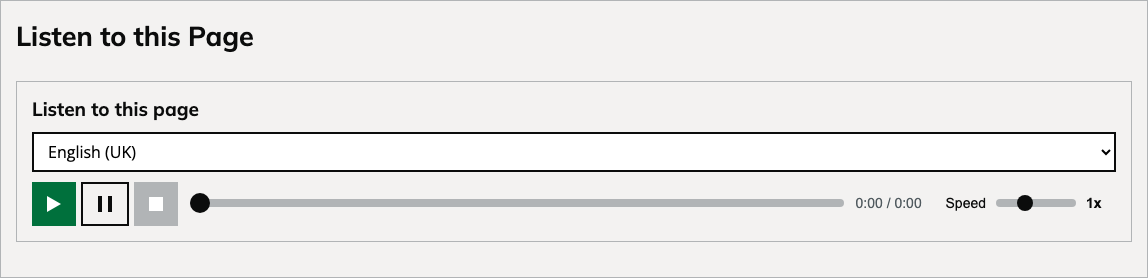
Player controls
The TTS player includes intuitive controls:
Language selection
Choose from multiple languages including British English, Welsh, and other languages. The voice changes to match native pronunciation.
Play / Pause / Stop
Standard audio controls let visitors start, pause, and stop playback at any time. The player remembers position when paused.
Progress bar
Visual progress indicator shows how far through the content the reader has progressed. Click to jump to any position.
Speed control
Adjust playback speed from 0.5x to 2x to match listening preference. Slower speeds help comprehension; faster speeds save time.
Try it yourself
-
Navigate to a service page
From your Drupal homepage, click on any service link (e.g., "Waste and Recycling" or "Planning Applications").
-
Find the Listen to Page player
Look for the "Listen to this page" section at the top of the main content area, below the page title.
-
Select a language
Use the dropdown to choose your preferred language. British English (en-GB) is selected by default.
-
Click Play
Press the green Play button to start the text-to-speech. The page content will be read aloud using AWS Polly's neural voice.
-
Adjust speed (optional)
Use the speed slider to adjust playback speed. Try 1.25x or 1.5x for faster listening without losing clarity.
How it works
Behind the scenes, the Listen to Page feature:
- Extracts the main content from the page (excluding navigation and footers)
- Sends the text to AWS Polly via a secure API
- Receives synthesized audio in real-time chunks
- Streams the audio to the browser for playback
AWS Polly
AWS Polly is a cloud service that turns text into lifelike speech. It uses deep learning technologies to synthesize natural-sounding human speech. Neural voices provide the most human-like, conversational output.
Accessibility benefits
Text-to-speech supports multiple user needs:
| User group | How TTS helps |
|---|---|
| Visually impaired | Audio alternative to reading text on screen |
| Dyslexia | Hearing content can aid comprehension |
| Low literacy | Access information without reading |
| Multitasking | Listen while doing other tasks |
| Non-native speakers | Hear pronunciation while reading |