Step 1: Log in to Drupal - LocalGov Drupal Walkthrough
Get your credentials and access the Drupal admin dashboard
Great! You've deployed the demo
Now let's walk through what you just deployed and see it in action.
Start WalkthroughChoose your next step
Generate Evidence Pack
Create your business case documentation with what you've learned.
Generate Evidence PackWalkthrough progress
Step 1 of 11 • 3 minutes
Log in to Drupal
Get your admin credentials from CloudFormation and access the Drupal admin dashboard.
Expected outcome
- CloudFormation stack shows CREATE_COMPLETE status
- You have copied the DrupalUrl, AdminUsername, and AdminPassword
- You are logged into the Drupal admin dashboard
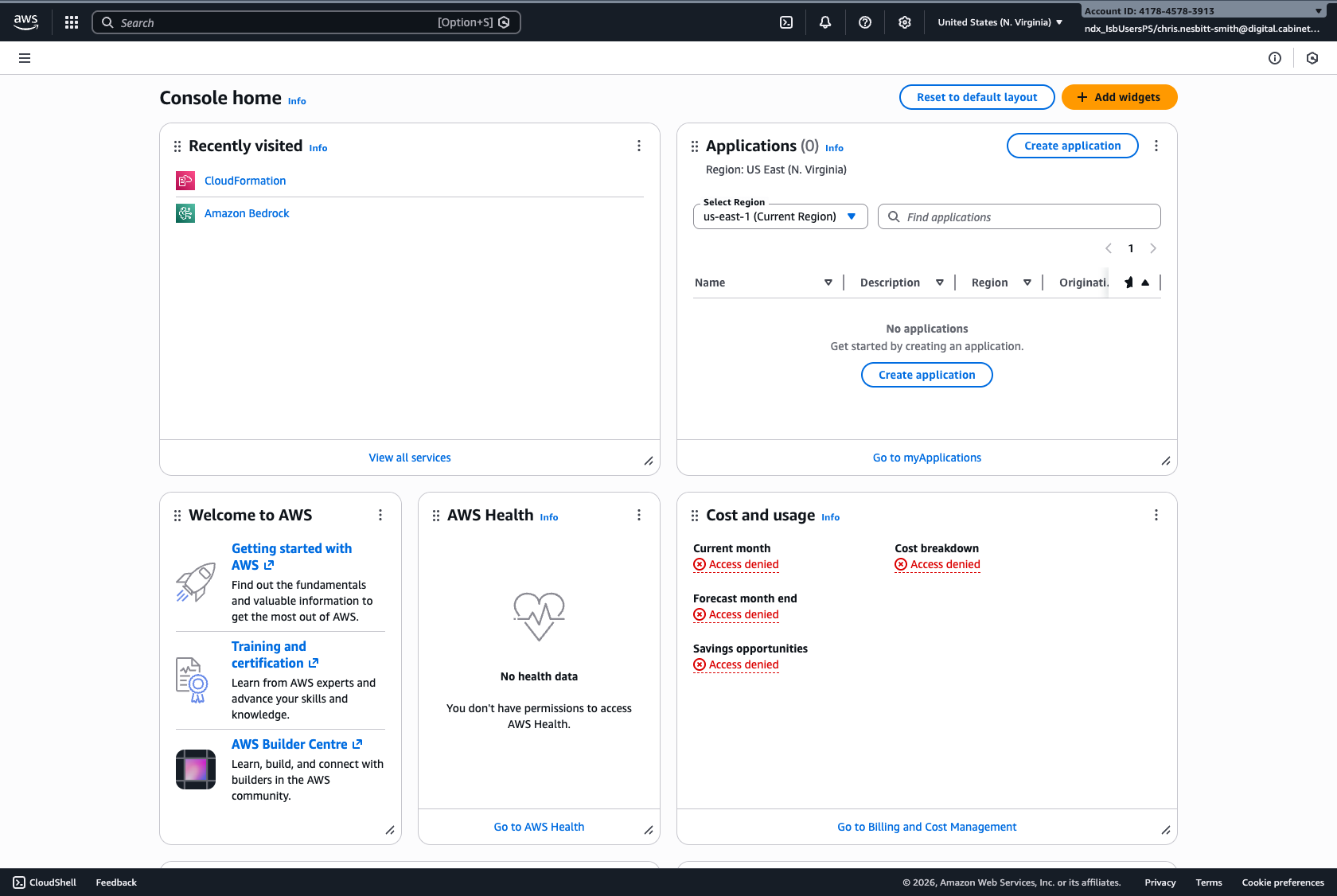
Navigating to CloudFormation
From the AWS Console homepage, you can find CloudFormation in the "Recently visited" section or by searching for "CloudFormation" in the search bar.
Finding your credentials
-
Open the CloudFormation console
Go to CloudFormation console in us-east-1 (N. Virginia) (opens in new tab)
-
Find your stack
Look for a stack named
LocalGovDrupalStackThe status should be CREATE_COMPLETE
Warning If the status shows CREATE_IN_PROGRESS, the deployment is still running. This scenario takes 35 to 40 minutes to deploy fully.This is normal. LocalGov Drupal provisions enterprise-grade infrastructure including an Aurora Serverless database, which takes time to create on-demand. While you wait, watch the Events tab in CloudFormation to see resources being created in real-time.
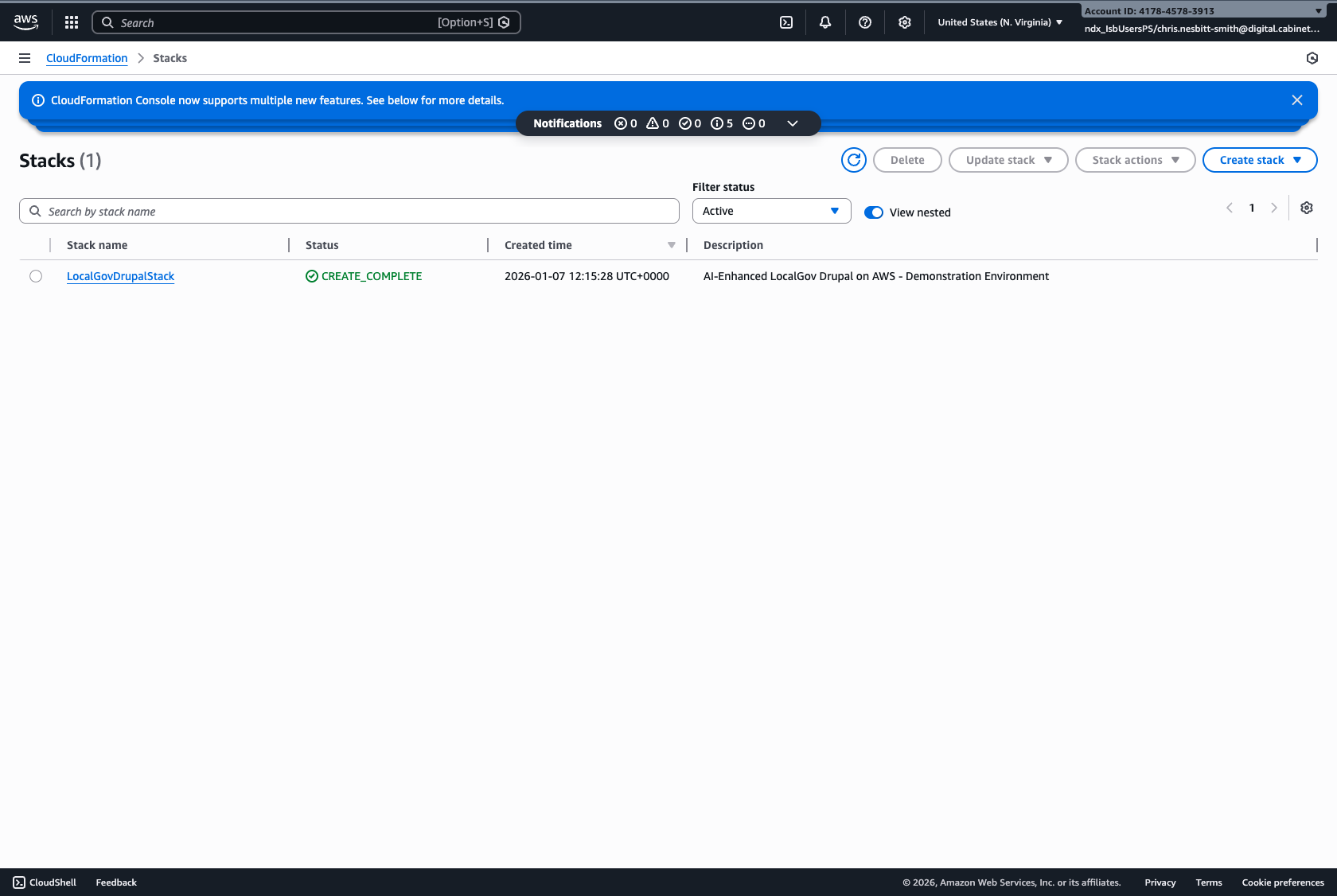
The CloudFormation Stacks list showing LocalGovDrupalStack with CREATE_COMPLETE status -
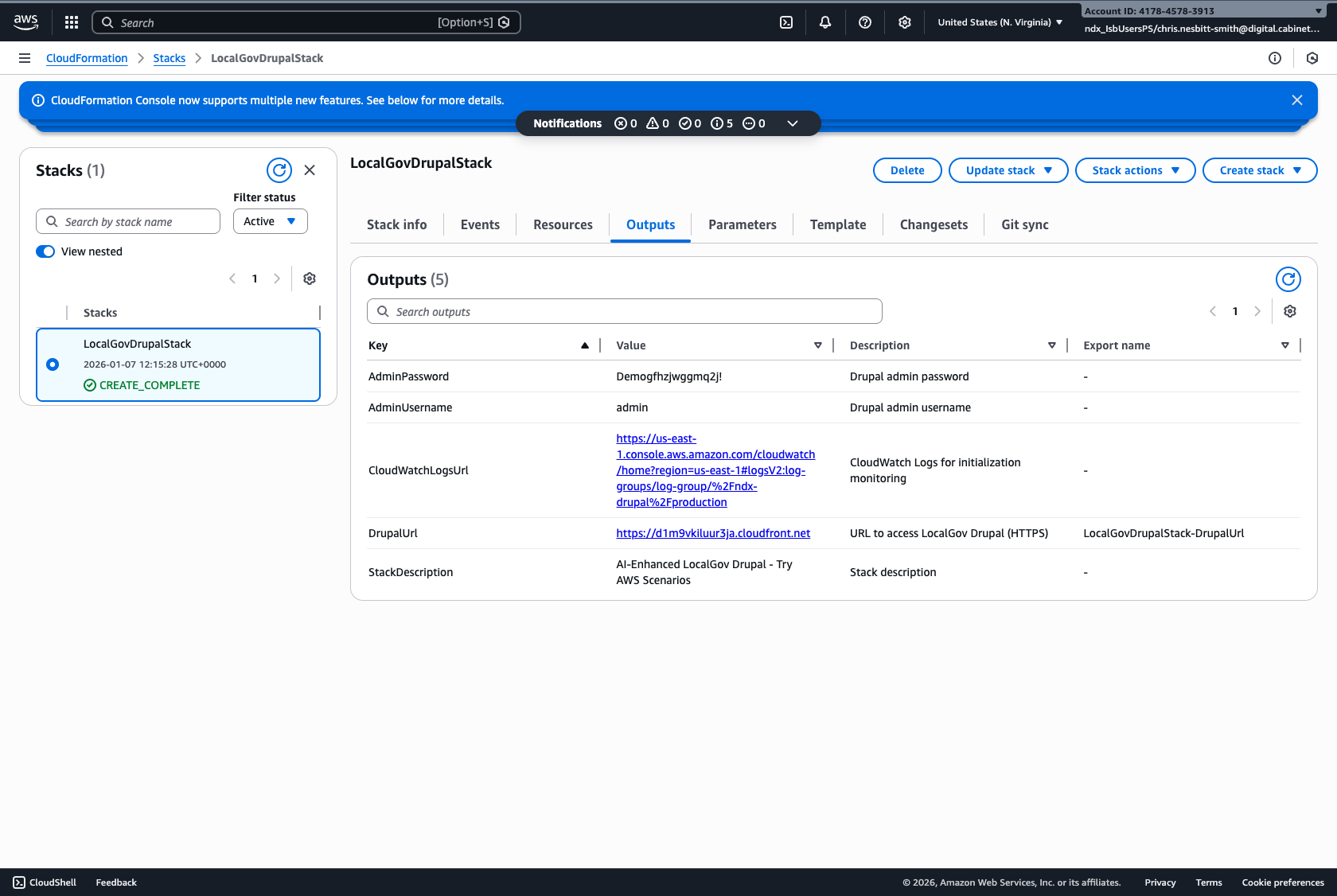
Go to the "Outputs" tab
Click on your stack name, then select the "Outputs" tab
-
Copy these three values
DrupalUrl: The URL to access your Drupal site
https://[random-id].cloudfront.netAdminUsername: Usually
adminAdminPassword: Auto-generated secure password
Tip: If you're viewing this after deploying from the scenario page, your credentials are also shown in the Credentials Card on that page.
Logging in to Drupal
-
Open your Drupal site
Click the DrupalUrl link or paste it into a new browser tab
-
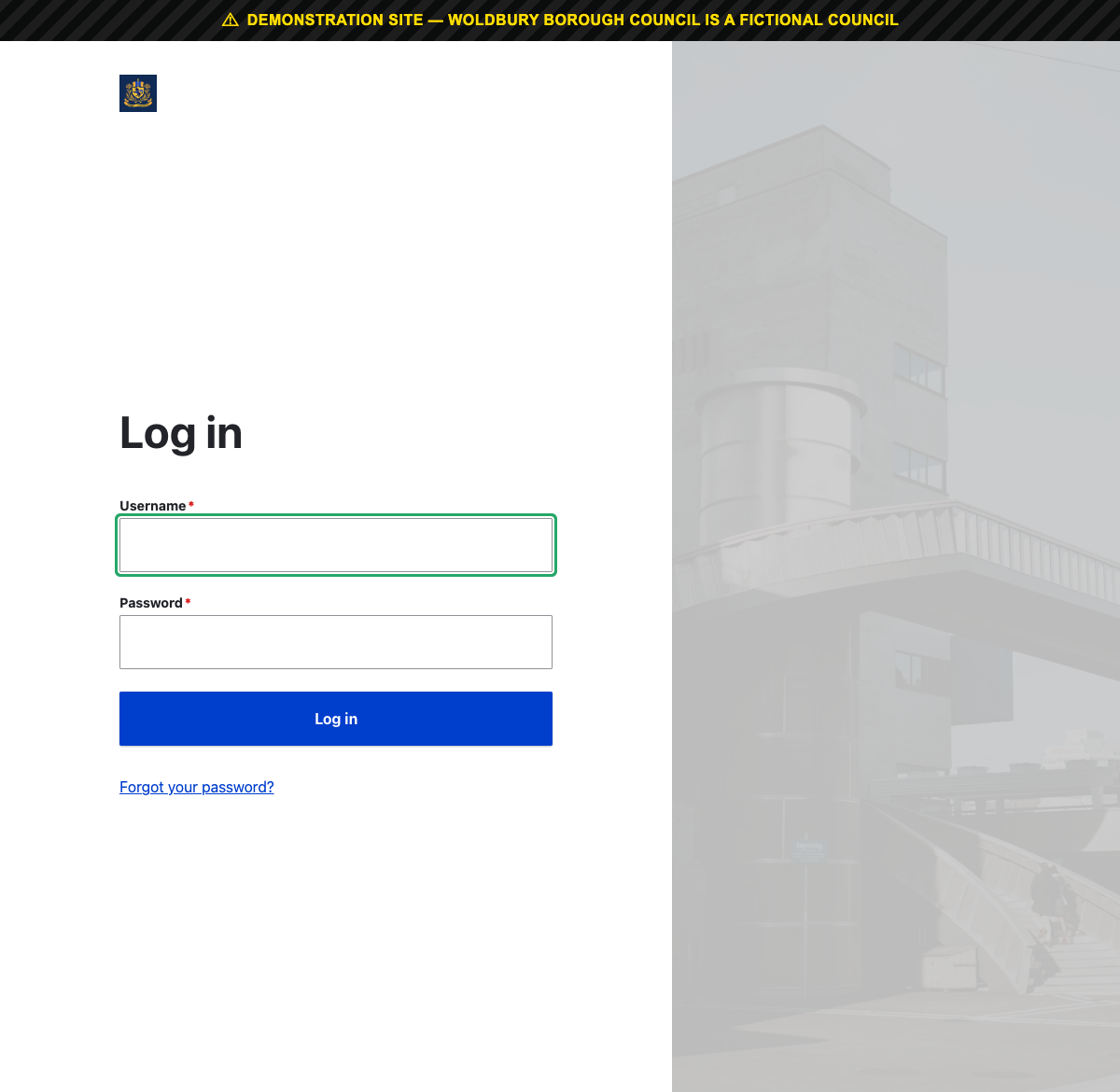
Go to the login page
Add
/user/loginto the URL, or click "Log in" in the header -
Enter your credentials
Enter the AdminUsername and AdminPassword from the Outputs tab
-
Click "Log in"
You'll be redirected to the Drupal admin dashboard
What you should see
After logging in, you should see:
- The Drupal admin toolbar at the top of the page
- A "Welcome to [Council Name]" message
- Quick links to Content, Structure, and other admin sections
- The DEMO banner indicating this is a demonstration site
Troubleshooting: Site not loading
If the Drupal site doesn't load:
- Wait 2-3 minutes after stack completion - Drupal needs time to initialize
- Check the CloudFormation "Events" tab for any errors
- Try refreshing the page - the first load may be slow
- Check you're using the correct URL from the Outputs tab
Troubleshooting: Login not working
If you can't log in:
- Double-check you copied the entire password (no trailing spaces)
- Passwords are case-sensitive
- Make sure you're on the
/user/loginpage, not the homepage - Try using the password copy button in CloudFormation Outputs