Step 5: Use the Admin Panel - FixMyStreet Walkthrough
Browse the admin dashboard showing report statistics and management tools
Great! You've deployed the demo
Now let's walk through what you just deployed and see it in action.
Start WalkthroughChoose your next step
Generate Evidence Pack
Create your business case documentation with what you've learned.
Generate Evidence PackWalkthrough progress
Step 5 of 6 • 3 minutes
Use the Admin Panel
Explore the FixMyStreet admin panel to see report statistics, manage categories, and understand the administrative capabilities available to council teams.
Expected outcome
- You can access the /admin panel and see the dashboard
- You understand how reports are categorised and tracked
- You have explored the administrative tools available to council officers
Access the admin panel
-
Navigate to the admin panel
Add
/adminto your FixMyStreet URL (e.g.,https://[your-url].cloudfront.net/admin). You must be signed in with the admin credentials from Step 1. -
View the admin dashboard
The admin dashboard shows an overview of the system including:
- Total number of reports and their status breakdown
- Recent reports requiring attention
- System configuration and council settings
-
Browse reports from the admin view
Click on "Reports" in the admin navigation to see all reports in a searchable, sortable table. This view is designed for council officers who need to manage a high volume of reports efficiently.
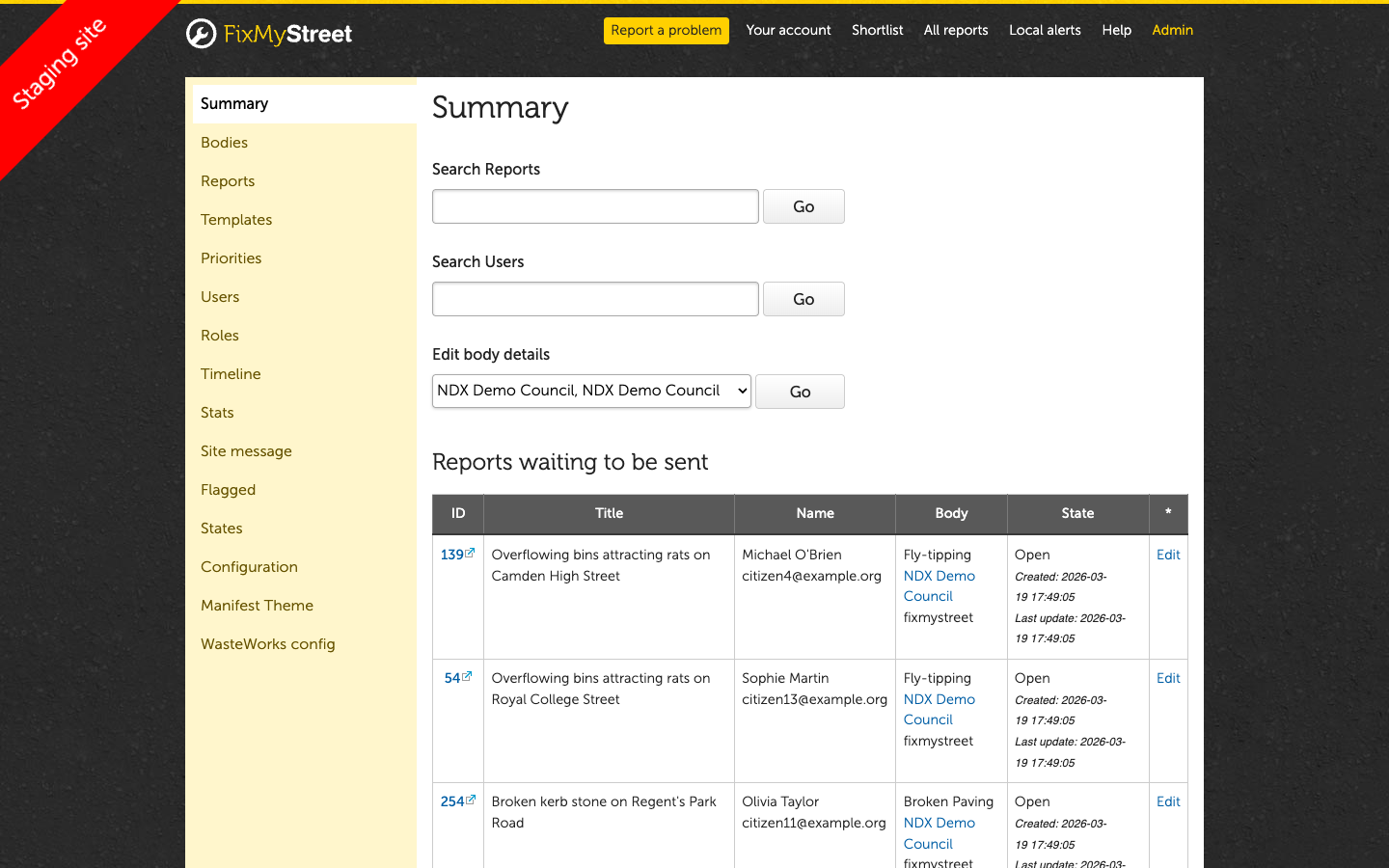
What to explore in the admin panel
Report management
View individual reports with full details including location data, citizen information, category, and complete update history. Council officers can change status, reassign categories, and add internal notes that are not visible to the public.
Category configuration
See how report categories are configured. In a production deployment, councils can customise categories to match their service structure, set up auto-routing rules, and configure response templates for common issues.
User management
Browse the list of registered users. The demo includes 15 simulated citizen accounts who have created the 260 demo reports. In production, this would show real residents and their reporting history.
Council body settings
View the NDX Demo Council configuration including contact details, area boundaries, and service settings. Multi-tier councils (e.g., district and county) can configure report routing based on category and location.
What to notice: The admin panel separates operational report management from system configuration. Service teams use the council dashboard (Step 4) for day-to-day work, while the admin panel is used for system setup and oversight.
Troubleshooting: Cannot access /admin
If you see "access denied" or a blank page at /admin:
- Make sure you are signed in with the admin credentials, not a regular citizen account
- Try signing out and back in again
- Check the URL is correct — it should be
/adminnot/admin/with a trailing slash on some configurations - Clear your browser cache and try again in a private/incognito window