Step 4: View the Council Dashboard - FixMyStreet Walkthrough
Sign in as council admin and browse all reports on the map
Great! You've deployed the demo
Now let's walk through what you just deployed and see it in action.
Start WalkthroughChoose your next step
Generate Evidence Pack
Create your business case documentation with what you've learned.
Generate Evidence PackWalkthrough progress
Step 4 of 6 • 3 minutes
View the Council Dashboard
Sign in as a council officer and see all citizen reports on a map. Filter by category and status to understand the council's operational view.
Expected outcome
- You are signed in as the council admin user
- You can see all 260+ reports displayed on the council map view
- You understand how the council views and filters reports by category and status
Sign in as council admin
-
Go to the sign-in page
Click "Sign in" in the top-right corner of the FixMyStreet homepage, or navigate directly to
/authon your FixMyStreet URL. -
Enter your admin credentials
Use the AdminUsername and AdminPassword from Step 1 (the CloudFormation Outputs tab).
-
Navigate to the council reports view
Once signed in, navigate to
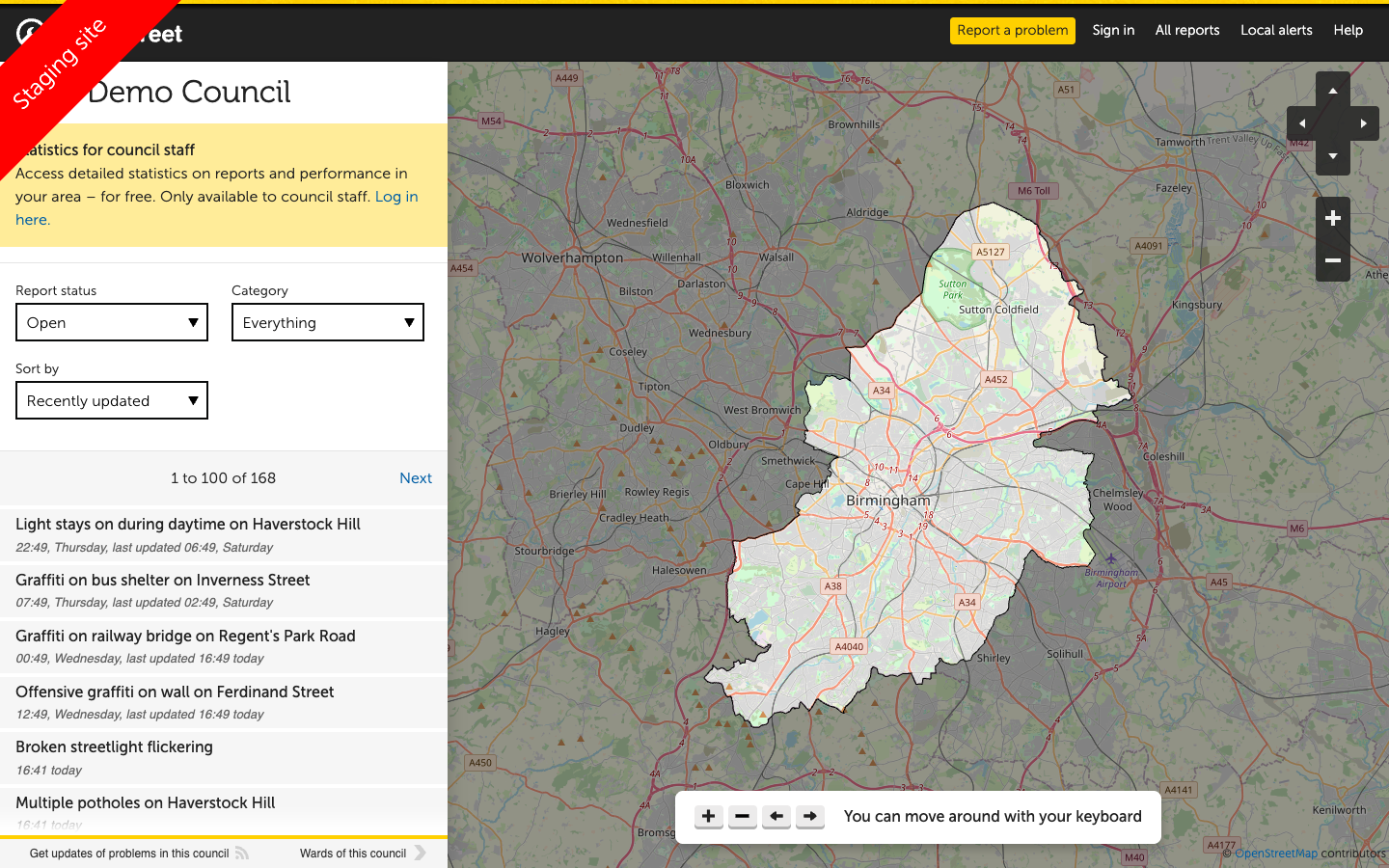
/reports/NDX+Demo+Councilon your FixMyStreet URL. This shows all reports submitted to the NDX Demo Council on a single map view.Tip: You can also reach this page by clicking "All reports" in the navigation, then selecting the council area.
Explore the council view
The council reports page gives you an operational overview of all citizen reports. Try these actions:
Filter by category
Use the category filter to show only specific types of reports. For example, filter to "Potholes" to see all road surface issues on the map at once. This is how a highways team would triage their workload.
Filter by status
Switch between "Open", "In progress", and "Fixed" to see reports at different stages. This helps councils understand their backlog and resolution rates.
View report details
Click on any report in the list or on the map to see full details. As a council officer, you will see additional options for updating the status and adding internal notes.
Spot patterns
Look at the map for clusters of reports. Areas with many pins may indicate a systemic issue (e.g., a road that needs resurfacing) rather than individual problems. This spatial view is powerful for resource planning.
Update a report status
As a signed-in council admin, you can update the status of any report:
- Open any report by clicking on it from the map or list view.
- Scroll down to the update section below the report details.
- Change the status using the dropdown (e.g., from "Open" to "In progress" or "Fixed").
- Add a public update — type a message that the citizen will see, such as "We have scheduled this pothole for repair next week."
- Submit the update — the report status will change and the citizen would receive an email notification in a production deployment.
What to notice: The council dashboard turns citizen reports into actionable work items. The spatial view, filtering, and status tracking give councils real-time visibility into street issues across their entire area.
Troubleshooting: Cannot sign in with admin credentials
If the admin credentials do not work:
- Double-check the username and password from the CloudFormation Outputs tab
- Passwords are case-sensitive — copy and paste to avoid errors
- Make sure you are using the admin email, not a citizen account
- Try clearing your browser cookies for the site and signing in again