Step 5: Update the Knowledge Base - Council Chatbot Walkthrough
Add a new document to the knowledge base and see the chatbot learn it
Great! You've deployed the demo
Now let's walk through what you just deployed and see it in action.
Start WalkthroughChoose your next step
Generate Evidence Pack
Create your business case documentation with what you've learned.
Generate Evidence PackWalkthrough progress
Step 5 of 5 • 5 minutes
Update the Knowledge Base
The real power of a Knowledge Base is that you can update it without any code changes. In this step, you'll add a new council document and see the chatbot learn from it in minutes.
Part 1: Ask a question the chatbot can't answer
First, let's find a gap in the chatbot's knowledge. The knowledge base doesn't include anything about Japanese knotweed — a common council responsibility.
Copy this question
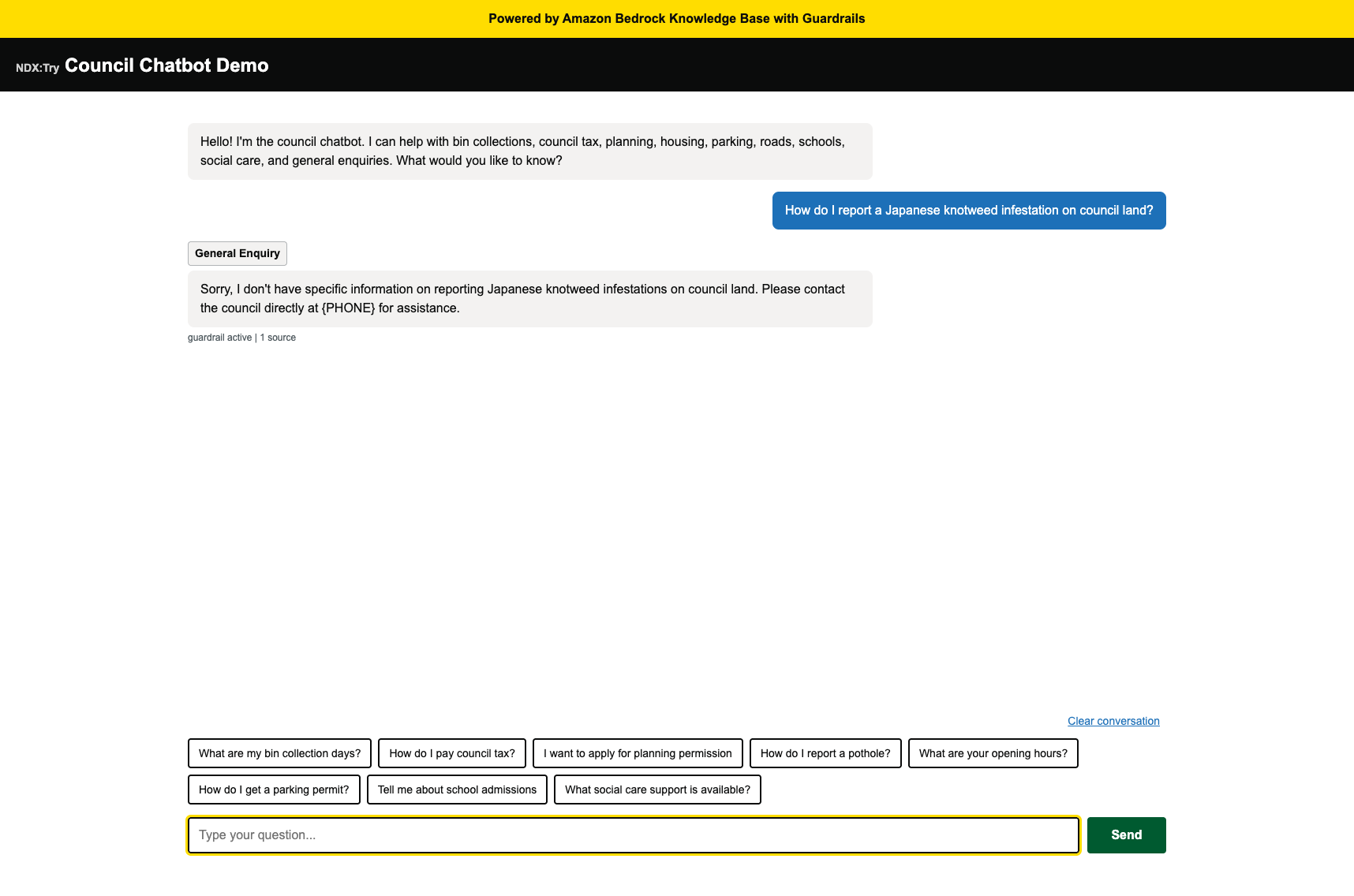
How do I report a Japanese knotweed infestation on council land?
Paste this into the chatbot and press Send. You should see a response like:
The chatbot admits it doesn't have this information — exactly what we want. Now let's fix that.
Part 2: Download the document
We've prepared a sample council document about Japanese knotweed services. Download it to your computer — you'll upload it to the Knowledge Base in the next step.
Preview: what's in the document
Japanese Knotweed Guide - Northfield Metropolitan Borough Council REPORTING JAPANESE KNOTWEED Japanese knotweed is an invasive plant that damages buildings and drains. Report it on council land so we can act. How to report: Call Environmental Services on 0121 555 0183, email knotweed@northfield.gov.uk, or report online at www.northfield.gov.uk/japanese-knotweed After reporting: We inspect within 10 working days, create a treatment plan, and treat over 3 to 5 years with herbicide. Identifying it: Tall bamboo-like stems up to 3 metres, shield-shaped leaves, white flowers in late summer. Roots spread up to 7 metres. Your responsibilities: You must not cause it to spread. It is controlled waste, never put it in garden waste bins. Mortgage lenders may require treatment plans. Council programme: We manage over 45 sites on public land at no cost to residents. For private land, use a Property Care Association certified contractor.
Part 3: Upload to the Knowledge Base S3 bucket
-
Find the S3 bucket name
Go to your CloudFormation stack's Outputs tab and find the
KnowledgeBaseBucketvalue. It will look like:ndx-try-chatbot-kb-[account-id]-us-east-1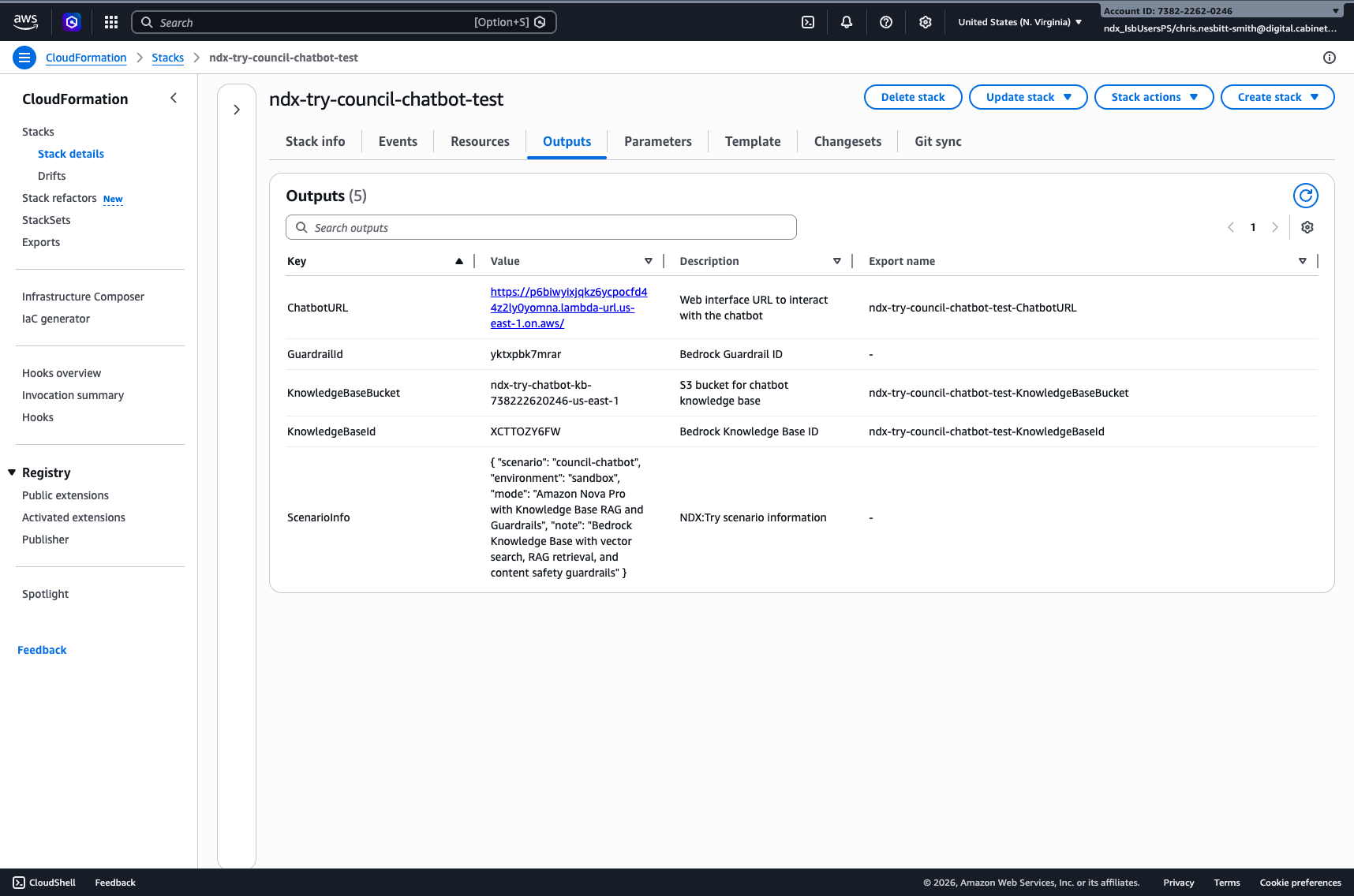
-
Open the S3 bucket
Navigate to S3 in the AWS Console (opens in new tab), find the bucket, and open the
documents/folder. You'll see the 30 existing council documents.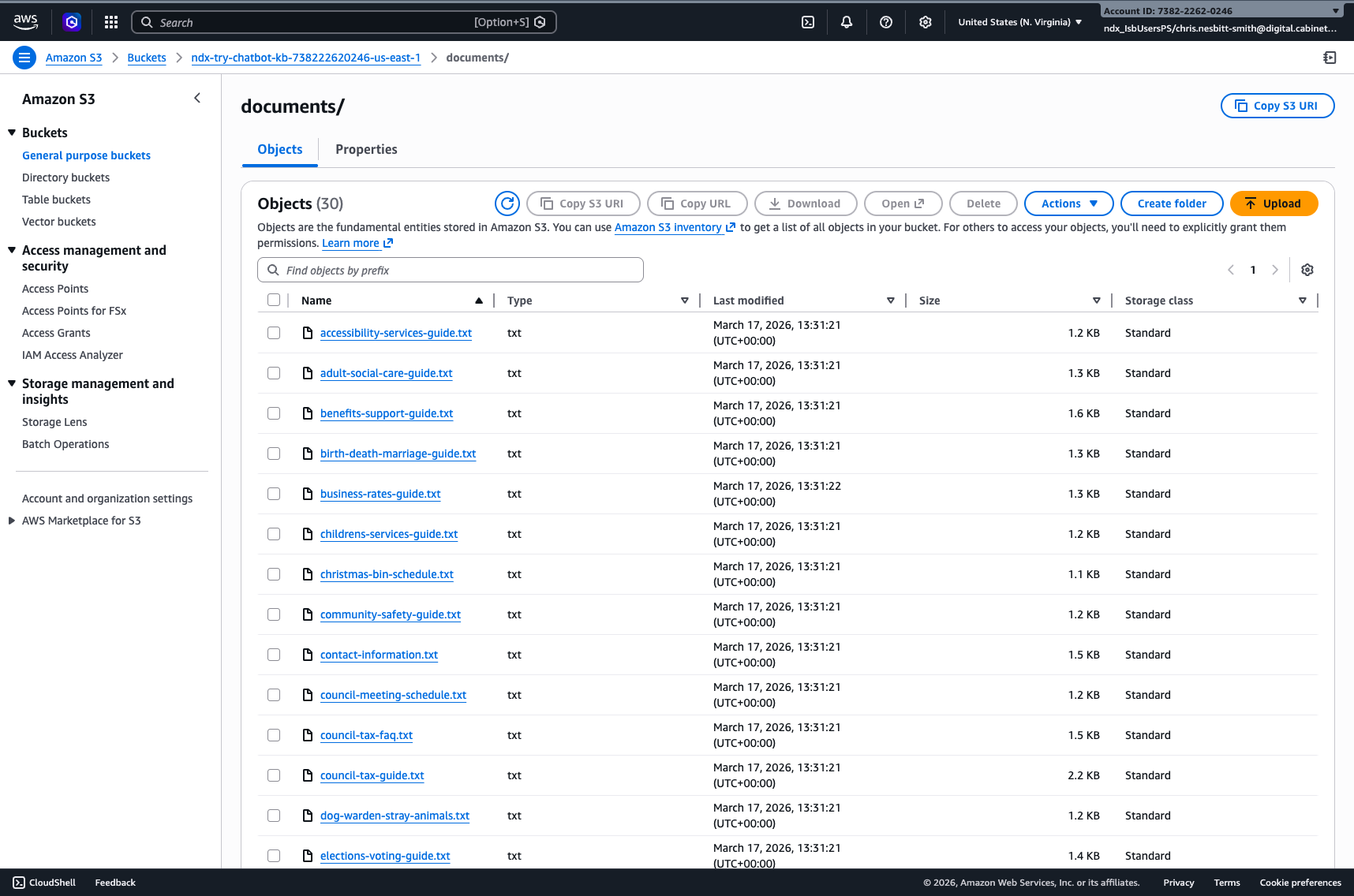
-
Click Upload
Click the orange Upload button, then Add files, and select your
knotweed-guide.txtfile.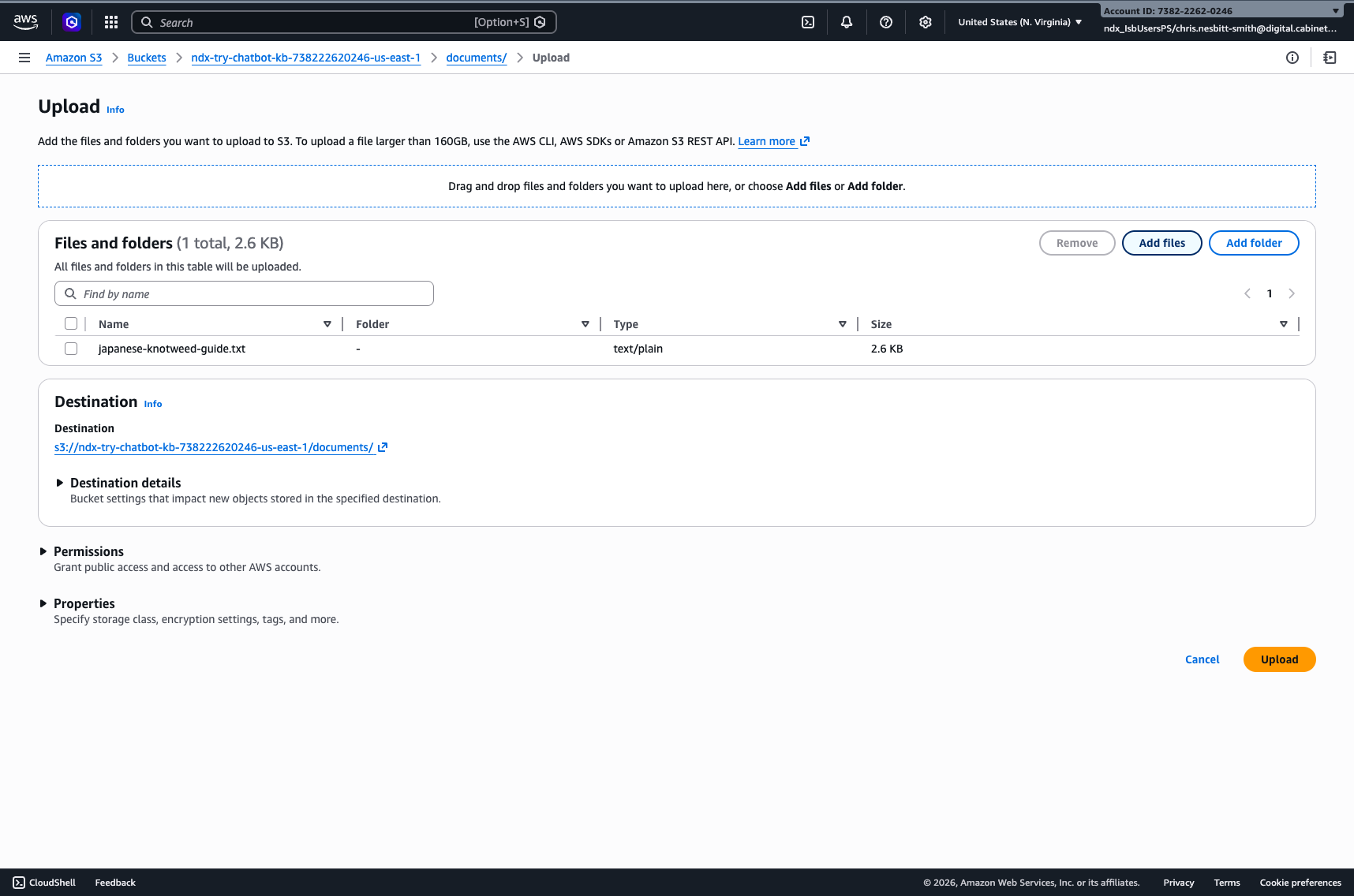
-
Confirm the upload
Check the destination shows
s3://[your-bucket]/documents/, then click Upload at the bottom of the page.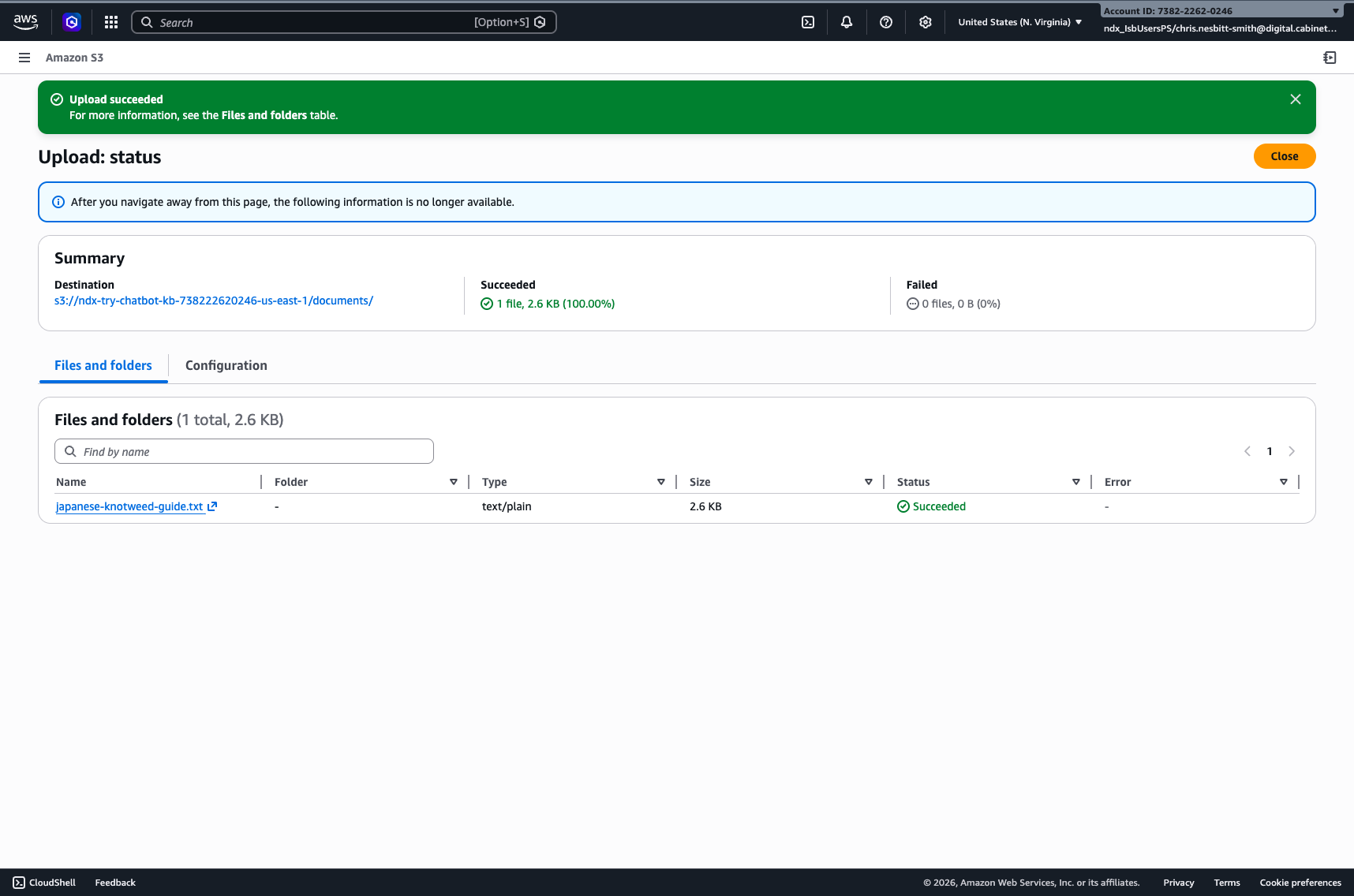
Part 4: Sync the Knowledge Base
The document is in S3, but the Knowledge Base doesn't know about it yet. You need to trigger a sync to index the new document.
-
Open the Bedrock Knowledge Base console
Go to Amazon Bedrock > Knowledge Bases (opens in new tab) in the AWS Console.
-
Click on your Knowledge Base
You'll see one Knowledge Base listed — click on its name (e.g.
ndx-try-council-kb-us-east-1) to open the detail page.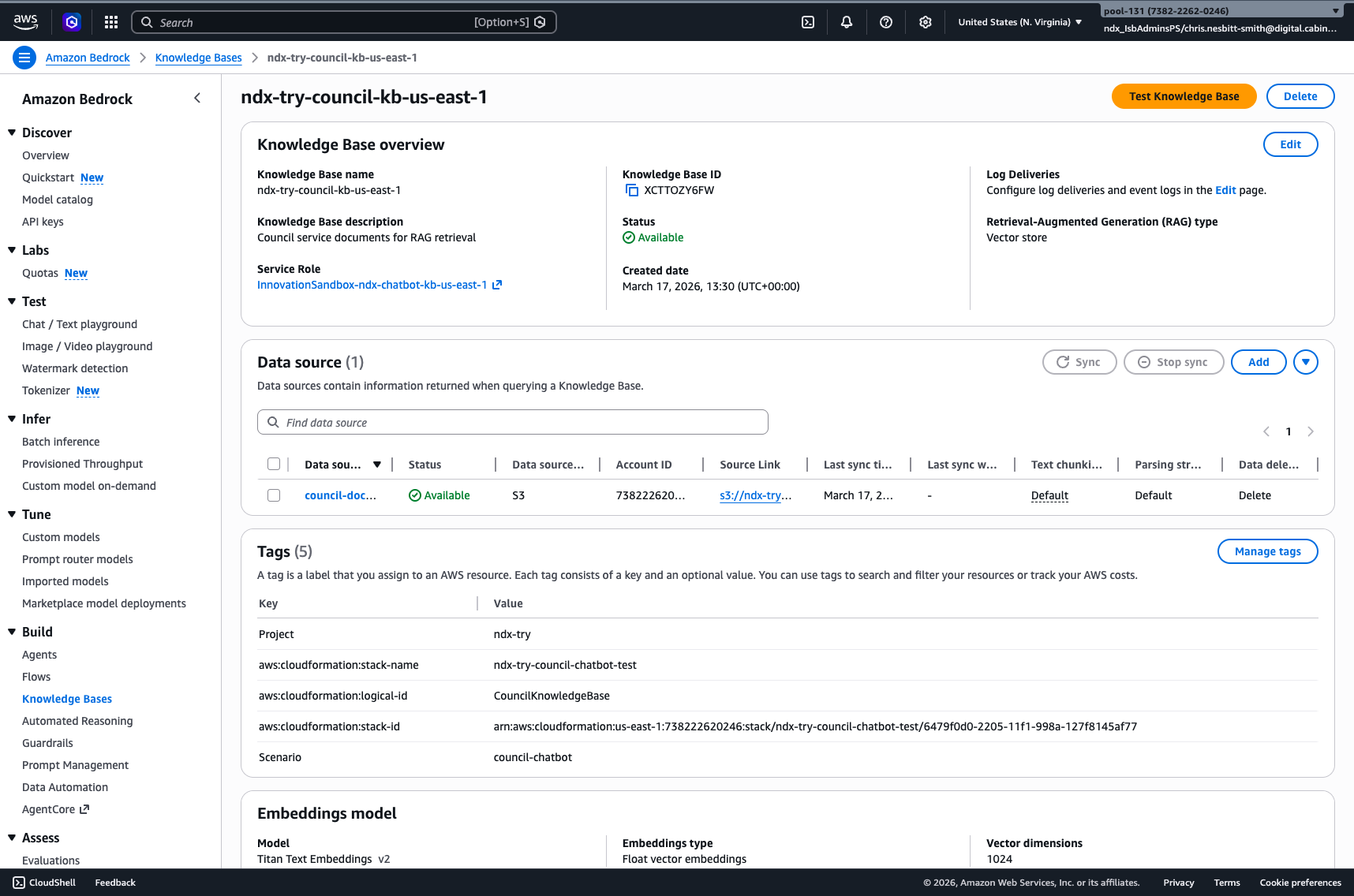
-
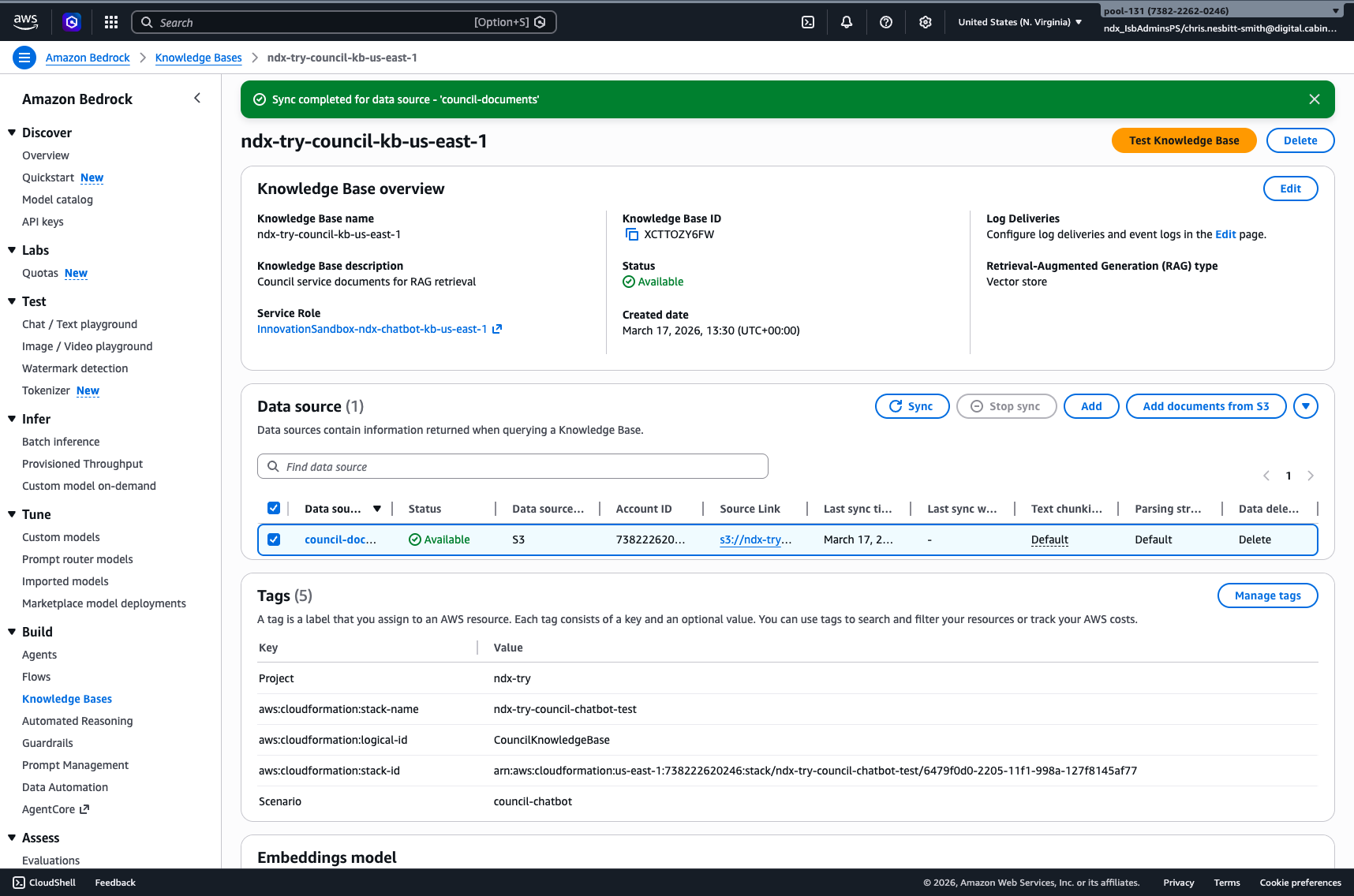
Select the data source and click Sync
In the Data source section, tick the checkbox next to
council-documents, then click the Sync button. This tells the Knowledge Base to scan the S3 bucket for new or changed documents and index them. -
Wait for the sync to complete
You'll see a blue banner saying "Syncing data source". For a single new document, this typically takes 30 to 60 seconds. When it finishes, you'll see a green "Sync completed" banner.
Part 5: Test the chatbot again
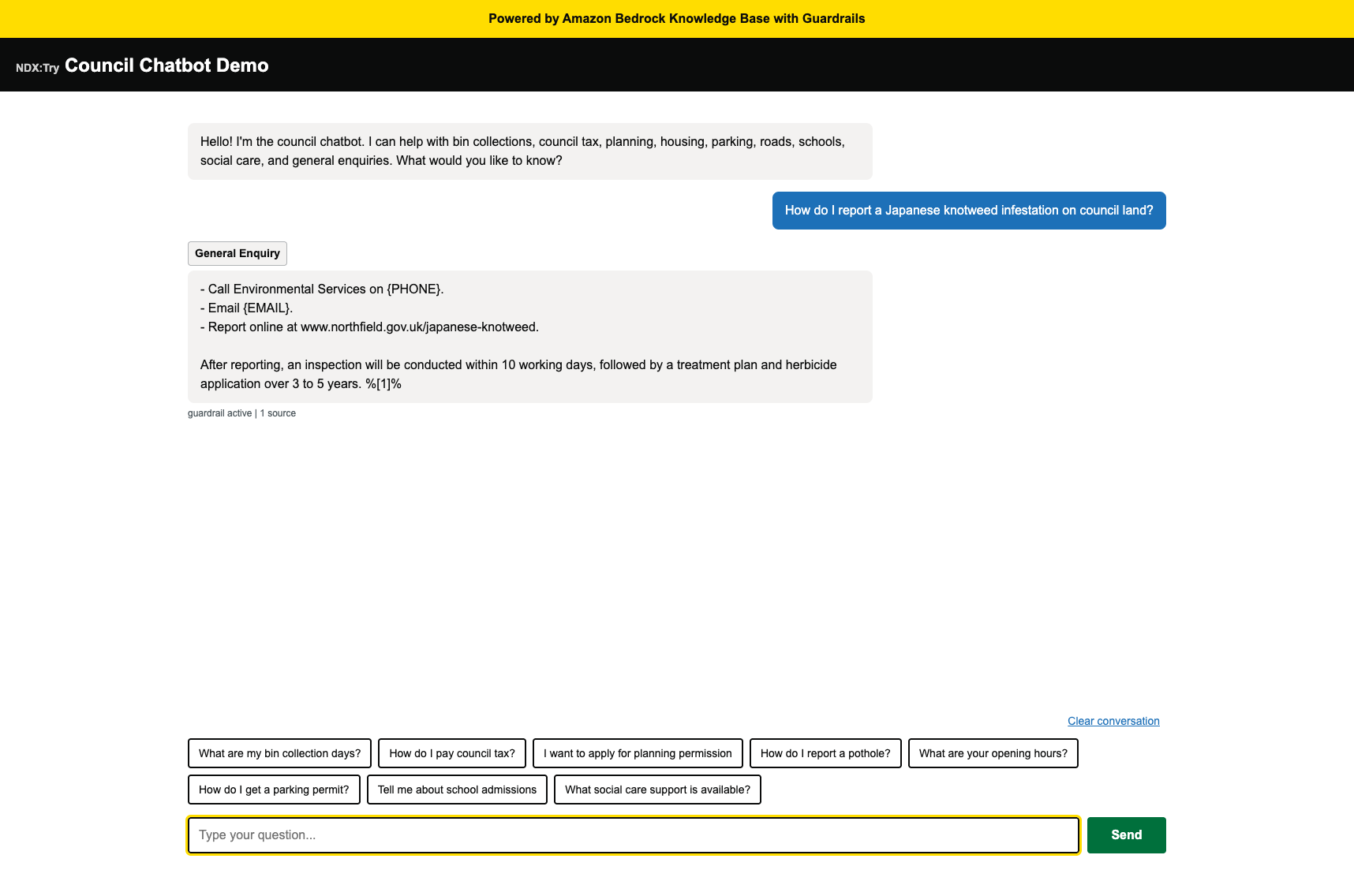
Go back to your chatbot tab, click Clear conversation, and ask the same question:
How do I report a Japanese knotweed infestation on council land?
What just happened
- You uploaded a new document to S3 — no code changes needed
- You triggered a Knowledge Base sync to index the new content
- The chatbot immediately answered using the new document
- No retraining, no redeployment, no downtime
Why this matters for councils
Content teams can update it
Adding new knowledge doesn't require developers. Anyone who can upload a file to S3 can update what the chatbot knows — just like updating a website.
Changes take effect in minutes
New policies, changed opening hours, seasonal information — upload the document, sync the knowledge base, and residents get accurate answers within minutes.
Plain text documents work
The Knowledge Base accepts .txt, .pdf, .html, .csv, and .md files. You can use existing council documents without reformatting.
Scale without limits
Add hundreds or thousands of documents. The vector search finds the right information regardless of how large the knowledge base grows.
Troubleshooting: Chatbot still doesn't know the answer
- Wait 60 seconds after the sync command and try again — indexing takes time
- Click Clear conversation in the chatbot before asking again — old sessions may use cached context
- Check the file was uploaded to the
documents/folder (not the bucket root) - Make sure the file is plain text (.txt) — binary formats like .docx won't work without conversion
Troubleshooting: CloudShell command fails
- Check you replaced
YOUR_KB_IDwith the actual Knowledge Base ID from CloudFormation Outputs - Ensure you're in the
us-east-1region (check the region selector in the top-right) - If you see "access denied", the sandbox session may have expired — try refreshing the page